
OpenSnitch Ubuntu Installation Guide for Beginners helps Linux users understand how to install, configure, and manage one of the most powerful application firewalls available for Ubuntu systems. OpenSnitch is designed to monitor outgoing internet connections and give users complete control over which applications can access the network. It is especially useful for improving privacy, security, and traffic management on Linux desktops.
OpenSnitch has become increasingly popular among Ubuntu users because it combines advanced network monitoring with a user-friendly graphical interface. Beginners often struggle to understand Linux firewalls, but OpenSnitch simplifies the process by showing real-time connection requests and allowing users to create rules with just a few clicks. This guide explains everything from installation to troubleshooting simply and professionally.
What Is OpenSnitch?
OpenSnitch is an open-source application firewall created for Linux operating systems. It works by monitoring outbound internet connections made by applications installed on your computer. Whenever an application attempts to connect to the internet, OpenSnitch generates a pop-up notification asking whether the connection should be allowed or denied.
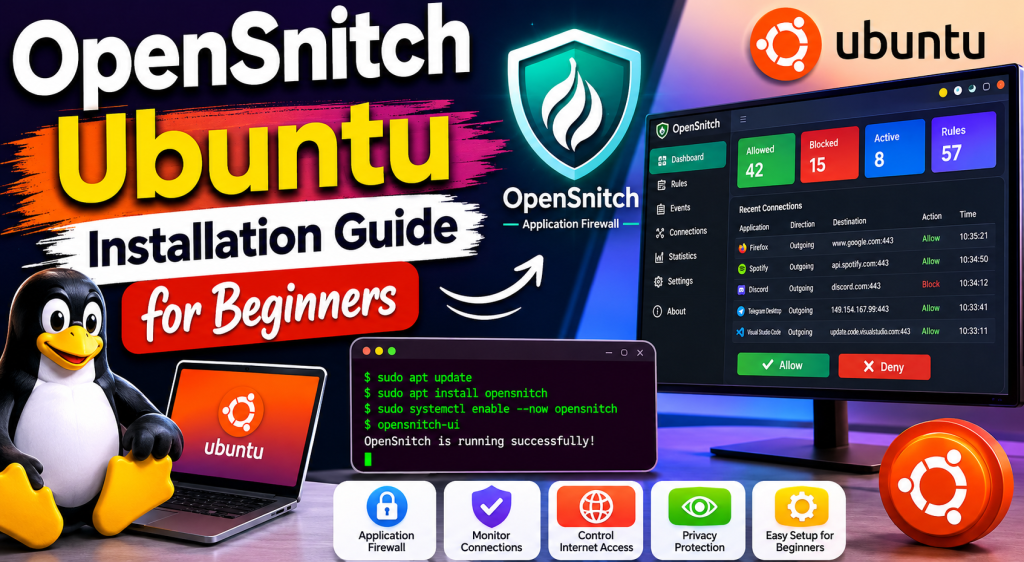
Unlike traditional firewalls that focus mainly on incoming traffic, OpenSnitch specializes in controlling outgoing traffic. This gives users visibility into which programs are sending data over the network. It is often compared to Little Snitch on macOS because both tools provide application-based outbound traffic control.
OpenSnitch includes a daemon service that runs in the background and a graphical interface for managing alerts, rules, and network activities. The firewall supports temporary and permanent rules, making it highly flexible for beginners and advanced users alike.
Why Ubuntu Users Need OpenSnitch
Ubuntu is considered one of the safest Linux distributions, but security risks still exist. Applications can collect data, connect to unknown servers, or communicate without the user’s knowledge. OpenSnitch helps users identify and control these activities.
Here are several reasons why Ubuntu users install OpenSnitch:
Enhanced Privacy
Some applications silently connect to analytics services, cloud servers, or trackers. OpenSnitch allows users to block these connections and protect personal data.
Real-Time Monitoring
The software displays active network connections in real time. Users can instantly see which application is trying to connect to the internet.
Malware Protection
Although malware is less common on Linux than on Windows, it still exists. OpenSnitch helps detect suspicious outgoing traffic from malicious applications.
Better Internet Management
Users can block unnecessary background applications that consume bandwidth and slow down internet performance.
Application-Based Rules
Unlike standard firewalls, OpenSnitch creates rules for specific applications rather than just ports or IP addresses.
How OpenSnitch Works
Understanding how OpenSnitch functions is important before installation. The software operates through two major components:
OpenSnitch Daemon
The daemon is the backend service responsible for monitoring network connections. It intercepts outgoing traffic and applies firewall rules.
OpenSnitch User Interface
The graphical interface displays notifications and allows users to manage rules. It communicates with the daemon to process user decisions.
Whenever an application tries to establish a connection:
- The daemon detects the outgoing request.
- OpenSnitch shows a pop-up notification.
- The user selects Allow or Deny.
- A rule is created based on the selection.
- Future connections follow the saved rule automatically.
This interactive process makes OpenSnitch extremely beginner-friendly.
System Requirements for OpenSnitch on Ubuntu
Before installing OpenSnitch, ensure your system meets the minimum requirements.
Supported Ubuntu Versions
OpenSnitch works on most modern Ubuntu releases, including:
- Ubuntu 20.04
- Ubuntu 22.04
- Ubuntu 24.04
- Ubuntu-based distributions such as Linux Mint and Pop!_OS
Recommended Hardware
Although OpenSnitch is lightweight, the following specifications are recommended:
- Dual-core processor
- 2 GB RAM minimum
- 200 MB free storage
- Stable internet connection
Required Permissions
You need administrator privileges because firewall installation requires root access.
Preparing Ubuntu for Installation
Before installing OpenSnitch, update your Ubuntu system to avoid dependency issues.
Updating System Packages
Run the following commands in the terminal:
sudo apt updatesudo apt upgrade
Updating packages ensures compatibility with the latest OpenSnitch release.
Installing Required Dependencies
Some Ubuntu installations may require additional dependencies.
sudo apt install wget curl python3
These utilities help during installation and configuration.
Downloading OpenSnitch on Ubuntu
OpenSnitch packages are usually distributed in DEB format for Ubuntu systems.
Choosing the Correct Package
Select the package according to your Ubuntu architecture:
- AMD64 for most modern PCs
- ARM64 for ARM-based devices
Download Verification
Always verify downloaded files to avoid corrupted or modified packages. Package verification improves security and installation stability.
Installing OpenSnitch on Ubuntu
The installation process is straightforward for beginners.
Installing the Daemon
Install the daemon package first:
sudo dpkg -i opensnitch*.deb
Installing the User Interface
Install the graphical interface package:
sudo dpkg -i python3-opensnitch-ui*.deb
Fixing Dependency Errors
If dependency issues appear, run:
sudo apt --fix-broken install
This command automatically installs missing dependencies.
Starting OpenSnitch Service
After installation, enable and start the service.
Enabling OpenSnitch
sudo systemctl enable opensnitch
Starting the Service
sudo systemctl start opensnitch
Checking Service Status
Verify that the service is active:
sudo systemctl status opensnitch
If everything works correctly, the service status will display as active and running.
Launching OpenSnitch GUI
Once installed, OpenSnitch can be launched from the applications menu.
Accessing the Interface
Search for OpenSnitch in Ubuntu applications and open it.
Initial Configuration
During the first launch:
- The daemon connects to the GUI.
- Default rules are loaded.
- Monitoring begins automatically
You may immediately receive pop-up notifications from active applications.
Understanding OpenSnitch Notifications
Popup alerts are the core feature of OpenSnitch.
Notification Information
Each pop-up usually contains:
- Application name
- Process ID
- Destination IP
- Domain name
- Port number
Rule Duration Options
Users can apply rules for:
- One time
- Current session
- Permanent use
Allow or Deny
The decision determines whether the application can communicate with the internet.
Creating Firewall Rules
Rules control network behavior for applications.
Application Rules
Application rules allow or deny traffic for specific programs.
Domain Rules
Users can block or allow certain domains.
Port Rules
OpenSnitch can manage connections based on network ports.
Temporary Rules
Temporary rules expire after a selected period.
Permanent Rules
Permanent rules remain active until manually changed or removed.
Managing Existing Rules
OpenSnitch provides a dedicated rules management section.
Viewing Rules
The Rules tab displays all active firewall rules.
Editing Rules
Users can modify:
- Applications
- Domains
- Ports
- Protocols
- Rule duration
Deleting Rules
Unnecessary or incorrect rules can be removed easily.
Monitoring Network Activity
The dashboard offers detailed insights into system traffic.
Real-Time Connections
Users can monitor live outbound connections.
Statistics Overview
OpenSnitch displays:
- Allowed connections
- Blocked connections
- Bandwidth usage
- Active applications
Connection Logs
Detailed logs help analyze suspicious activities.
OpenSnitch Desktop Integration
OpenSnitch integrates smoothly with Ubuntu desktops.
GNOME Support
GNOME users receive native notifications and tray integration.
KDE Plasma Support
The application also works well with KDE environments.
Lightweight Operation
OpenSnitch consumes minimal system resources compared to many traditional monitoring tools.
Best Security Practices for Beginners
Using OpenSnitch effectively requires smart firewall management.
Avoid Blindly Allowing Connections
Read the pop-up information carefully before allowing applications.
Block Unknown Applications
If an unfamiliar application requests internet access, investigate before allowing it.
Use Permanent Rules Carefully
Permanent rules should only be applied to trusted software.
Monitor Logs Regularly
Checking logs helps identify suspicious activity.
Common OpenSnitch Problems on Ubuntu
Beginners may face several issues during installation or usage.
GUI Not Opening
Possible causes include:
- Daemon not running
- Missing dependencies
- Incorrect installation
Restarting the daemon usually fixes the issue.
sudo systemctl restart opensnitch
Notifications Not Appearing
This may occur due to desktop notification settings or background process issues.
High CPU Usage
Large amounts of traffic can increase CPU usage temporarily. Updating OpenSnitch often resolves optimization problems.
Broken Dependencies
Dependency errors are common on outdated Ubuntu systems. Updating packages generally solves this problem.
How to Uninstall OpenSnitch from Ubuntu
If you no longer need OpenSnitch, it can be removed safely.
Removing Packages
sudo apt remove opensnitch python3-opensnitch-ui
Removing Configuration Files
sudo apt purge opensnitch python3-opensnitch-ui
Cleaning Unused Packages
sudo apt autoremove
OpenSnitch vs UFW
Ubuntu users often compare OpenSnitch with UFW.
Purpose
- UFW controls system-level firewall rules
- OpenSnitch controls application-level outbound traffic.
User Experience
OpenSnitch is more interactive and beginner-friendly.
Flexibility
OpenSnitch provides detailed application monitoring that UFW does not offer directly.
Best Approach
Many users run both tools together for stronger security.
OpenSnitch vs Little Snitch
OpenSnitch is frequently compared to Little Snitch.
Platform
- OpenSnitch works on Linux.
- Little Snitch works on macOS
Cost
OpenSnitch is completely free and open source.
Functionality
Both tools provide similar outbound traffic monitoring features.
Advantages of Using OpenSnitch
Open Source Transparency
Anyone can inspect the source code for security and reliability.
Easy Rule Creation
Interactive popups simplify firewall management.
Improved Privacy
Users gain visibility into hidden internet connections.
Beginner-Friendly Interface
The graphical interface makes Linux firewall management less intimidating.
Limitations of OpenSnitch
Learning Curve
Beginners may initially feel overwhelmed by frequent notifications.
Linux-Focused
The software is designed specifically for Linux systems.
Outbound Focus
It primarily manages outgoing traffic rather than full network security.
Tips to Improve OpenSnitch Performance
Reduce Unnecessary Rules
Too many rules can complicate management.
Update Regularly
New versions often include performance improvements.
Use Trusted Applications
Install software from trusted repositories to reduce unwanted alerts.
Review Background Services
Disable unnecessary startup applications to reduce network noise.
OpenSnitch for Privacy Enthusiasts
Privacy-conscious users appreciate OpenSnitch because it reveals hidden communications between applications and remote servers.
Examples include:
- Telemetry blocking
- Tracker prevention
- Cloud synchronization control
- Ad server blocking
This level of transparency is valuable for advanced Linux users.
OpenSnitch in Enterprise Environments
Although commonly used by individuals, OpenSnitch can also help businesses.
Internal Monitoring
Organizations can monitor application communication.
Security Auditing
Logs provide valuable security analysis data.
Controlled Internet Access
Administrators can restrict unauthorized application traffic.
OpenSnitch for Developers
Developers often use OpenSnitch during software testing.
API Monitoring
Developers can inspect how applications communicate externally.
Debugging Network Requests
The tool helps identify unwanted or failed connections.
Security Testing
OpenSnitch assists in analyzing application behavior.
Understanding OpenSnitch Rule Types
Simple Rules
Basic allow or deny permissions.
Advanced Rules
Rules based on:
- IP addresses
- Ports
- Hostnames
- Processes
Time-Based Rules
Temporary permissions useful for testing environments.
Updating OpenSnitch on Ubuntu
Keeping OpenSnitch updated improves security and stability.
Updating Through Package Manager
sudo apt updatesudo apt upgrade
Reinstalling New Versions
Users can manually install newer packages when needed.
OpenSnitch Logging Features
Logs are extremely useful for security analysis.
Log Information Includes
- Connection attempts
- Allowed requests
- Blocked requests
- Timestamps
- Application details
Using Logs for Troubleshooting
Logs help identify connectivity problems and suspicious traffic.
OpenSnitch and Linux Security
OpenSnitch contributes to layered security strategies.
Complementary Protection
It works alongside:
- Antivirus tools
- VPNs
- Traditional firewalls
- Intrusion detection systems
User Awareness
The firewall educates users about network behavior in real time.
Beginner Mistakes to Avoid
Allowing Everything Automatically
Blindly allowing requests defeats the purpose of a firewall.
Ignoring Unknown Connections
Investigate unfamiliar applications before approving access.
Disabling Notifications Permanently
Notifications are critical for monitoring new activity.
Overcomplicated Rules
Keep rules simple during the learning phase.
Future of OpenSnitch
OpenSnitch continues evolving with the Linux ecosystem.
Improved Interface
Future updates may introduce better dashboards and usability.
Enhanced Performance
Developers regularly optimize resource usage.
Expanded Compatibility
Support for additional Linux distributions continues improving.
Is OpenSnitch Safe to Use?
OpenSnitch is generally considered safe because it is open source and widely used by Linux communities. Users can inspect the code, review security practices, and contribute to development.
Security ultimately depends on how effectively users manage firewall rules and monitor suspicious traffic.
Should Beginners Install OpenSnitch?
OpenSnitch is highly recommended for beginners who want more visibility into Ubuntu network activity. Its interactive design simplifies outbound traffic management without requiring advanced firewall knowledge.
Although there is a small learning curve, the benefits greatly outweigh the complexity. Users quickly become familiar with firewall concepts through daily usage.
Conclusion
OpenSnitch provides Ubuntu users with a powerful yet beginner-friendly way to monitor and control outgoing internet connections. Unlike traditional firewalls, it focuses on application-level traffic management, allowing users to decide exactly which programs can access the internet. The interactive notifications, flexible rules, and detailed monitoring features make it one of the best Linux firewall solutions for privacy and security.
OpenSnitch also helps users understand how applications communicate online, improving overall awareness of system behavior. Whether you are concerned about privacy, malware protection, bandwidth management, or network transparency, OpenSnitch offers an effective solution for Ubuntu systems. With proper configuration and regular monitoring, beginners can significantly improve their Linux security experience using this open-source firewall.