
OpenSnitch on Fedora is becoming a popular choice among Linux users who want greater control over outgoing network connections and application-level internet access. Fedora is known for its strong security environment, and combining it with OpenSnitch creates a reliable setup for monitoring applications, blocking suspicious traffic, and improving system privacy.
OpenSnitch helps users understand which applications are connecting to the internet and allows them to approve or deny those connections in real time. Whether you are a beginner learning Linux security or an advanced Fedora user searching for better network visibility, this guide will walk you through the complete installation and configuration process step by step.
What Is OpenSnitch?
OpenSnitch is an open-source interactive application firewall designed for Linux systems. It works by monitoring outgoing network connections from applications installed on your computer. Whenever an application tries to connect to the internet, OpenSnitch displays a pop-up notification asking whether the connection should be allowed or blocked.
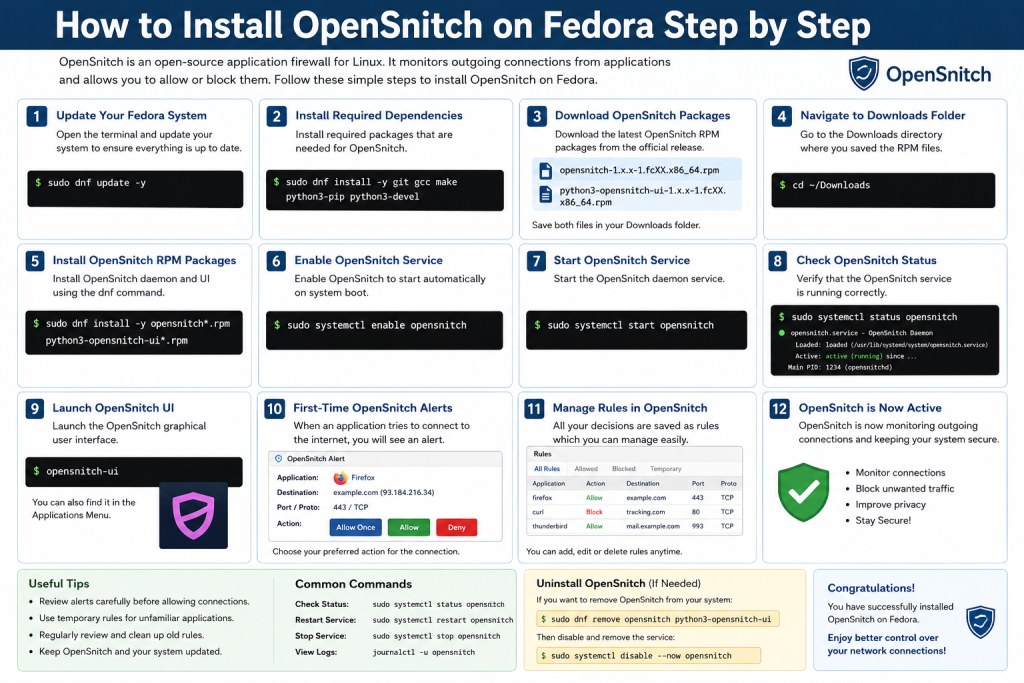
The software was inspired by Little Snitch, a well-known macOS firewall tool. OpenSnitch brings similar functionality to Linux users while remaining completely free and open source.
Unlike traditional firewalls that mainly focus on incoming traffic, OpenSnitch specializes in controlling outbound connections. This makes it extremely useful for privacy-conscious users, developers, cybersecurity learners, and Linux enthusiasts.
Why Use OpenSnitch on Fedora?
Fedora already includes several powerful security features, but OpenSnitch adds another layer of visibility and control. Many applications connect to remote servers silently in the background, and most users never notice those connections.
Using OpenSnitch on Fedora helps you:
Monitor Outgoing Connections
You can see which applications are accessing the internet and where they are connecting.
Improve Privacy
Applications that collect telemetry or tracking information can be blocked easily.
Detect Suspicious Activity
Unexpected network activity from unknown applications can indicate malware or compromised software.
Control Internet Access
You can allow specific applications while blocking others permanently or temporarily.
Learn Linux Networking
OpenSnitch provides an excellent learning experience for users interested in understanding Linux network behavior.
Understanding How OpenSnitch Works
Before installing OpenSnitch, it is important to understand its architecture.
OpenSnitch has two main components:
OpenSnitch Daemon
The daemon runs in the background and monitors network connections using Linux firewall capabilities.
OpenSnitch User Interface
The graphical interface displays alerts, statistics, and firewall rules. This is where users manage permissions and monitor activity.
When an application attempts to establish a new connection:
- The daemon intercepts the request.
- A notification appears on the desktop.
- The user chooses whether to allow or deny the connection.
- A firewall rule is created automatically.
This process gives users full control over outbound traffic.
System Requirements for OpenSnitch on Fedora
Before starting the installation, make sure your system meets the following requirements.
Minimum Requirements
- Fedora Workstation
- Root or sudo access
- An active internet connection
- Graphical desktop environment
- Python support
- Systemd enabled
Recommended Requirements
- Latest Fedora version
- GNOME desktop environment
- Updated packages
- At least 2 GB RAM
- Firewall enabled
Preparing Fedora for Installation
Before installing any software, updating Fedora is always recommended.
Update Fedora Packages
Open the terminal and run:
sudo dnf update
After the update process finishes, reboot the system if necessary.
Install Required Dependencies
OpenSnitch depends on several system packages. Install them using:
sudo dnf install git gcc make python3-pip python3-devel
These packages help compile and manage OpenSnitch properly.
Methods to Install OpenSnitch on Fedora
There are multiple ways to install OpenSnitch on Fedora. The most common methods include:
- Installing from RPM packages
- Building from source code
- Using precompiled releases
This guide focuses on the most stable and reliable method.
Downloading OpenSnitch for Fedora
The first step is downloading the latest OpenSnitch release package compatible with Fedora.
You can obtain the package from the official release repository. Download both:
- OpenSnitch daemon package
- OpenSnitch UI package
Save them inside your Downloads folder.
Installing OpenSnitch RPM Packages
Navigate to the Downloads directory:
cd ~/Downloads
Install the packages using DNF:
sudo dnf install opensnitch*.rpm python3-opensnitch-ui*.rpm
Fedora will automatically install required dependencies during the process.
Starting the OpenSnitch Service
Once installation is complete, start the daemon service.
Enable OpenSnitch Service
sudo systemctl enable opensnitch
Start OpenSnitch
sudo systemctl start opensnitch
Verify Service Status
sudo systemctl status opensnitch
If the service is running correctly, you will see an active status message.
Launching the OpenSnitch User Interface
After enabling the daemon, launch the graphical interface.
You can start it from:
- Fedora application menu
- Terminal command
- Desktop launcher
Use the following command:
opensnitch-ui
Once opened, the application begins monitoring outgoing connections immediately.
First-Time OpenSnitch Notifications
The first time OpenSnitch runs, many applications may request internet access.
These notifications typically include:
- Application name
- Destination IP address
- Domain name
- Port number
- Protocol type
You can choose:
- Allow once
- Deny once
- Allow permanently
- Deny permanently
For beginners, temporary rules are safer until you understand application behavior.
Understanding OpenSnitch Rules
Rules are the core feature of OpenSnitch.
Every decision you make creates a rule that controls future behavior.
Rule Components
A rule may include:
- Application path
- Destination host
- Port
- Protocol
- User
- Time duration
Types of Rules
Temporary Rules
Valid for a short session or a limited time.
Permanent Rules
Remain active until manually deleted.
Application Rules
Apply only to a specific application.
System Rules
Affect multiple processes or network patterns.
Managing OpenSnitch Rules
OpenSnitch provides a dedicated rules manager for editing permissions.
Viewing Existing Rules
Inside the interface, navigate to the Rules section.
You can view:
- Allowed applications
- Blocked applications
- Host-based permissions
- Active filters
Editing Rules
You may change:
- Rule action
- Duration
- Scope
- Target application
Deleting Rules
Unused or incorrect rules can be removed easily from the interface.
Configuring OpenSnitch for Better Security
The default configuration works well, but advanced users can improve security further.
Block Unknown Applications
Consider denying unknown software until verified.
Use Permanent Rules Carefully
Permanent permissions reduce prompts but may weaken monitoring visibility.
Monitor DNS Requests
Unexpected DNS activity may indicate hidden tracking behavior.
Restrict Background Applications
Many applications communicate silently in the background. Blocking unnecessary connections improves privacy.
Using OpenSnitch with Fedora Firewall
Fedora includes FirewallD by default.
OpenSnitch works alongside FirewallD without major conflicts.
Differences Between FirewallD and OpenSnitch
| Incoming traffic filtering | Yes | Limited |
| Outgoing traffic filtering | Basic | Advanced |
| Application-level rules | No | Yes |
| Interactive popups | No | Yes |
| GUI monitoring | Limited | Full |
Using both tools together creates a stronger security environment.
OpenSnitch Notification Options
OpenSnitch supports flexible notification behavior.
Silent Mode
Prevents pop-ups for trusted applications.
Interactive Mode
Prompts users for every new connection.
Desktop Notifications
Displays connection alerts through the Fedora desktop environment.
Rule Learning
Automatically creates rules based on user decisions.
Monitoring Network Activity
One of OpenSnitch’s strongest features is real-time network visibility.
Connection Monitoring Dashboard
The dashboard displays:
- Active connections
- Data transfer
- Application activity
- Domains accessed
- Protocol information
Statistics Panel
You can monitor:
- Total blocked connections
- Allowed requests
- Bandwidth usage
- DNS queries
Installing OpenSnitch from Source on Fedora
Advanced users may prefer compiling OpenSnitch manually.
Clone Repository
git clone https://github.com/evilsocket/opensnitch.git
Navigate Into Directory
cd opensnitch
Build OpenSnitch
make
Install the Application
sudo make install
This method provides greater control and access to development versions.
Updating OpenSnitch on Fedora
Keeping OpenSnitch updated ensures better security and compatibility.
Check Installed Version
opensnitch-ui --version
Update Using DNF
sudo dnf update
If you installed from source, manually rebuild the latest release.
Common OpenSnitch Problems on Fedora
Some users may encounter issues after installation.
Service Not Starting
Possible causes include:
- Missing dependencies
- Permission errors
- Firewall conflicts
Try restarting the daemon:
sudo systemctl restart opensnitch
UI Not Opening
This usually occurs due to missing Python packages or graphical dependencies.
Install additional packages:
sudo dnf install python3-qt5
Excessive Notifications
During first-time setup, many prompts are normal.
Over time, rule creation reduces notification frequency.
Fedora Updates Breaking Compatibility
Kernel or firewall changes may occasionally affect OpenSnitch behavior.
Updating to the latest OpenSnitch release often resolves compatibility problems.
Best Practices for OpenSnitch Users
Following good practices improves both usability and security.
Review Rules Regularly
Old permissions may no longer be necessary.
Avoid Blindly Allowing Connections
Always verify unknown applications before granting permanent access.
Combine with Antivirus Tools
OpenSnitch works best alongside additional security tools.
Keep Fedora Updated
Updated systems reduce vulnerabilities and compatibility issues.
Monitor Browser Extensions
Extensions may create hidden connections that OpenSnitch can detect.
OpenSnitch for Developers
Developers often use OpenSnitch for testing and debugging.
Monitor API Requests
Applications making unexpected API calls become visible immediately.
Analyze Software Behavior
OpenSnitch helps identify hidden telemetry or analytics traffic.
Debug Container Traffic
Developers running containers can inspect outbound traffic patterns.
OpenSnitch for Privacy Enthusiasts
Privacy-focused users benefit greatly from OpenSnitch.
Block Telemetry
Many applications send diagnostic data automatically.
Stop Background Tracking
Applications may communicate with tracking servers without permission.
Restrict Cloud Synchronization
You can control which applications upload information online.
OpenSnitch Compared to Other Linux Firewalls
Linux users have several firewall options available.
OpenSnitch vs UFW
UFW is simple but lacks application-level monitoring.
OpenSnitch vs Firewalld
Firewalld focuses mainly on network zones and ports.
OpenSnitch vs GUFW
GUFW provides an easier UFW interface but still lacks interactive outbound control.
OpenSnitch vs Little Snitch
Little Snitch is macOS-only, while OpenSnitch targets Linux environments.
Fedora Security Benefits with OpenSnitch
Combining Fedora and OpenSnitch creates a highly secure Linux environment.
SELinux Integration
Fedora uses SELinux for advanced access control.
Strong Package Management
DNF ensures secure software installation.
Security-Focused Ecosystem
Fedora prioritizes updated packages and modern security practices.
OpenSnitch complements these features by providing outbound traffic visibility.
Understanding OpenSnitch Logs
Logs help users analyze connection history.
Viewing Logs
Logs may be found through:
- System journal
- OpenSnitch dashboard
- Log directories
Journalctl Command
journalctl -u opensnitch
Benefits of Logs
Logs help identify:
- Suspicious applications
- Failed connections
- Repeated traffic attempts
- Malware indicators
Customizing OpenSnitch Rules
Advanced users can build highly detailed rules.
Host-Based Filtering
Allow or block specific domains.
Port Restrictions
Control which ports applications may access.
Protocol-Based Rules
Filter TCP or UDP traffic separately.
User-Based Policies
Create rules for different Linux users.
Performance Impact of OpenSnitch
Most Fedora systems handle OpenSnitch efficiently.
Resource Usage
OpenSnitch generally uses:
- Low CPU
- Moderate RAM
- Minimal disk usage
Performance Considerations
Systems with many applications may experience:
- Increased notifications
- Slight startup delays
- Larger rule databases
Modern Fedora systems usually handle these tasks smoothly.
Is OpenSnitch Safe to Use?
Yes, OpenSnitch is considered safe for most Linux users.
Open Source Transparency
Its source code is publicly available for inspection.
Community Development
The project receives ongoing community support and updates.
Security Advantages
OpenSnitch improves visibility into application behavior and network activity.
However, incorrect rule configuration can accidentally block legitimate services.
Removing OpenSnitch from Fedora
If you no longer need OpenSnitch, it can be removed safely.
Stop the Service
sudo systemctl stop opensnitch
Disable Startup
sudo systemctl disable opensnitch
Remove Packages
sudo dnf remove opensnitch python3-opensnitch-ui
This removes both the daemon and the graphical interface.
Frequently Asked Questions
Does OpenSnitch Work on All Fedora Versions?
Most modern Fedora releases support OpenSnitch, though compatibility may vary slightly.
Is OpenSnitch beginner-friendly?
Yes, but beginners may need time to understand firewall prompts and rules.
Can OpenSnitch Block Malware?
It can block suspicious outgoing traffic, but it is not a replacement for antivirus software.
Does OpenSnitch Slow Down Fedora?
Performance impact is generally minimal on modern hardware.
Can I Use OpenSnitch Without a GUI?
Yes, the daemon can operate independently, though management becomes more difficult.
Troubleshooting Advanced Issues
Some advanced Fedora setups may require additional configuration.
SELinux Restrictions
SELinux policies may occasionally interfere with OpenSnitch behavior.
Wayland Compatibility
Certain desktop environments using Wayland may display notification differences.
Custom Kernel Configurations
Non-standard kernels can occasionally affect firewall monitoring functionality.
Tips for New OpenSnitch Users
Start with Temporary Rules
This prevents accidental permanent blocks.
Observe Application Behavior
Take time to understand normal traffic patterns.
Avoid Panic Blocking
Not every internet connection is dangerous.
Learn Common Linux Services
Understanding background services helps reduce confusion.
OpenSnitch and Linux Privacy Culture
Linux users often value transparency and system control.
OpenSnitch aligns perfectly with these principles by exposing hidden internet activity and giving users decision-making authority over network access.
Instead of silently trusting applications, users gain visibility into exactly what software is doing online.
Conclusion
OpenSnitch provides Fedora users with a powerful and flexible way to monitor and control outgoing network connections. From improving privacy to detecting suspicious activity, the software adds a valuable layer of transparency that traditional firewalls often lack.
OpenSnitch is especially useful for users who want greater awareness of how applications communicate with the internet. By following the installation steps, configuring rules carefully, and maintaining regular updates, Fedora users can build a more secure and privacy-focused Linux environment with confidence.