
OpenSnitch Windows is becoming a popular topic among PC users who want better control over internet connections, application activity, and online privacy. Many users search for advanced firewall solutions because traditional Windows security tools often fail to provide detailed outbound monitoring and real-time application control. OpenSnitch-style firewall management helps users monitor which applications access the internet and block suspicious traffic instantly.
OpenSnitch Windows solutions are especially useful for gamers, developers, businesses, and privacy-focused users who need transparent network monitoring. A properly configured firewall improves system security, prevents unauthorized connections, and reduces the risk of malware communication. Understanding firewall setup methods can significantly improve overall computer protection while maintaining system performance and internet stability.
What Is OpenSnitch?
OpenSnitch is an open-source application firewall originally designed for Linux systems. It allows users to monitor outbound internet connections and decide which applications should access the internet. Unlike traditional firewalls that mainly focus on incoming traffic, OpenSnitch provides detailed outbound traffic monitoring.
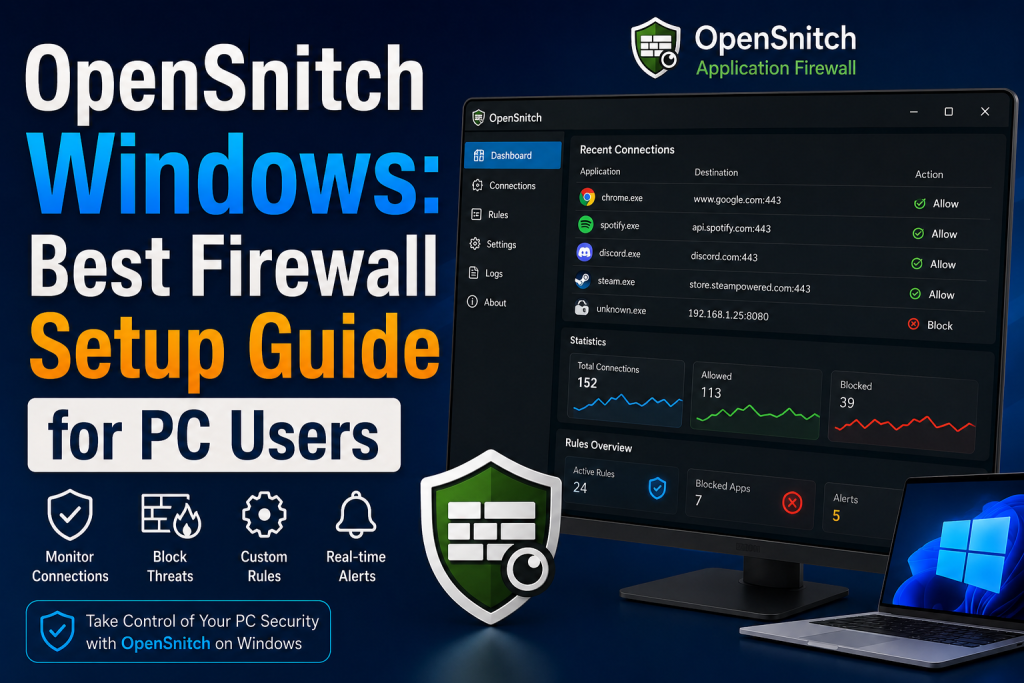
The firewall works by generating alerts whenever an application attempts to connect to the internet. Users can then allow or block the connection permanently or temporarily. This method gives users complete visibility into software behavior.
Although OpenSnitch is officially available for Linux distributions, many Windows users search for similar functionality because they want stronger outbound traffic control than the default Windows Defender Firewall provides.
Why Windows Users Need Advanced Firewall Protection
Modern applications constantly communicate with remote servers. Some programs collect telemetry data, while others may transmit unnecessary information in the background. Without advanced firewall monitoring, users often remain unaware of these hidden activities.
An advanced firewall setup helps Windows users:
- Monitor outgoing connections
- Block suspicious software
- Prevent unauthorized data transfer.
- Improve privacy
- Reduce malware communication
- Control internet usage
- Detect unknown network activity.
As cyber threats continue to evolve, outbound traffic monitoring has become equally important as inbound protection.
Does OpenSnitch Officially Support Windows?
Currently, OpenSnitch is mainly designed for Linux operating systems. There is no official Windows version directly maintained by the original OpenSnitch developers. However, Windows users can still achieve similar functionality using alternative firewall applications and advanced Windows Defender Firewall settings.
Many users refer to these advanced outbound firewall solutions as “OpenSnitch for Windows” because they provide similar capabilities, such as:
- Connection prompts
- Application-based filtering
- Real-time monitoring
- Custom rules
- Network activity analysis
Understanding these alternatives is essential for creating a professional firewall setup on Windows PCs.
Understanding How Application Firewalls Work
Traditional firewalls focus mainly on network ports and incoming traffic. Application firewalls operate differently by monitoring individual programs.
When an application tries to access the internet, the firewall evaluates predefined rules. If no rule exists, the user receives a prompt asking whether to allow or deny the connection.
Application firewalls provide several advantages:
Better Visibility
Users can see exactly which applications connect online.
Stronger Privacy
Unnecessary data collection can be blocked.
Malware Prevention
Suspicious software communication becomes easier to identify.
Network Control
Specific programs can be restricted to certain networks or protocols.
This level of granular control is why OpenSnitch-style firewalls are highly valued.
Best OpenSnitch Alternatives for Windows
Since OpenSnitch is not officially available on Windows, users rely on alternative tools that provide similar functionality.
GlassWire
GlassWire is one of the most popular firewall monitoring tools for Windows. It offers a user-friendly interface with real-time network visualization.
Key Features
- Real-time bandwidth monitoring
- Firewall control
- Network alerts
- Malware detection
- Visual traffic graphs
GlassWire is suitable for beginners because of its easy setup process and clean interface.
SimpleWall
SimpleWall is a lightweight firewall management utility for the Windows Filtering Platform.
Key Features
- Lightweight performance
- Advanced outbound filtering
- Application blocking
- Portable version support
- Minimal system resource usage
SimpleWall is ideal for users who prefer advanced firewall control without unnecessary visual elements.
TinyWall
TinyWall improves Windows Defender Firewall management while keeping the interface simple.
Key Features
- Silent operation
- Whitelist-based protection
- Lightweight design
- No unnecessary popups
- Easy application management
TinyWall works well for users who want security without constant notifications.
Portmaster
Portmaster is another modern privacy-focused firewall solution.
Key Features
- Outbound traffic monitoring
- DNS filtering
- Privacy protection
- Tracker blocking
- Advanced application control
Portmaster is often considered one of the closest alternatives to OpenSnitch functionality on Windows.
Windows Defender Firewall vs OpenSnitch-Style Firewalls
Windows Defender Firewall already provides strong inbound protection. However, its outbound management is less user-friendly for average users.
Windows Defender Firewall Strengths
- Built into Windows
- Reliable performance
- Good inbound security
- Enterprise integration
- Low system resource usage
Weaknesses
- Complex interface
- Limited real-time prompts
- Less transparency
- Difficult rule management for beginners
OpenSnitch-Style Firewall Advantages
- Real-time connection prompts
- Easier outbound monitoring
- Better visual network analysis
- Simpler rule creation
- Enhanced user awareness
This is why many users combine Windows Defender Firewall with third-party monitoring tools.
Preparing Your Windows PC for Firewall Setup
Before installing any advanced firewall solution, users should prepare their systems properly.
Update Windows
Always install the latest security updates before modifying firewall settings.
Remove Conflicting Security Tools
Multiple firewall applications can conflict with each other and cause network instability.
Create a System Restore Point
A restore point helps recover the system if configuration errors occur.
Backup Important Data
Although firewall installations are generally safe, backups are always recommended.
Installing an OpenSnitch-Style Firewall on Windows
The installation process varies depending on the selected application. However, the general process remains similar.
Step 1: Download the Firewall Application
Always download firewall software from official sources to avoid malware risks.
Step 2: Run Installer
Launch the installer with administrator privileges.
Step 3: Configure Initial Permissions
During setup, the firewall may ask for network access permissions.
Step 4: Restart the Computer
Some firewall tools require a reboot to activate network filtering properly.
Step 5: Begin Monitoring
Once installed, the firewall starts monitoring outgoing traffic immediately.
Configuring Outbound Firewall Rules
Outbound firewall rules determine which applications can access the internet.
Allow Rules
Allow rules permit internet access for trusted applications.
Examples include:
- Web browsers
- Video conferencing tools
- Cloud storage applications
- Online games
Block Rules
Block rules prevent applications from connecting online.
Examples include:
- Suspicious software
- Telemetry services
- Unused applications
- Unknown executables
Temporary Rules
Temporary permissions help test software safely before creating permanent rules.
Best Firewall Rule Practices
Improper firewall rules can break applications or weaken security.
Use Default Deny Carefully
Blocking everything by default may disrupt essential Windows services.
Monitor Unknown Connections
Investigate unfamiliar applications before allowing internet access.
Review Rules Regularly
Remove outdated permissions periodically.
Avoid Overblocking
Some legitimate software requires multiple background services.
Use Notifications Wisely
Excessive prompts may cause users to ignore important alerts.
Understanding Firewall Notifications
Advanced firewalls display alerts when applications attempt internet connections.
A typical notification includes:
- Application name
- Destination IP address
- Domain name
- Port number
- Protocol type
- Connection direction
Understanding these details helps users make informed security decisions.
Common Types of Network Connections
HTTP and HTTPS Traffic
Web browsers primarily use ports 80 and 443.
DNS Requests
DNS converts domain names into IP addresses.
Telemetry Traffic
Many applications send analytics data in the background.
Software Updates
Applications often require periodic internet access for updates.
Cloud Synchronization
Cloud storage services constantly communicate online.
Recognizing normal traffic patterns helps identify suspicious activity.
Blocking Telemetry and Tracking Services
Many users install OpenSnitch-style firewalls primarily for privacy protection.
Why Telemetry Matters
Telemetry can collect:
- Usage statistics
- Device information
- Performance data
- Behavioral analytics
Blocking Telemetry Safely
Users should block unnecessary telemetry while allowing essential Windows services.
Examples of safe blocking targets may include:
- Advertising services
- Optional analytics platforms
- Unused application updaters
Careless blocking can affect system functionality, so research is important.
Firewall Setup for Gamers
Gamers require balanced firewall configurations to maintain low latency while improving security.
Recommended Gaming Firewall Settings
- Allow game launchers
- Permit anti-cheat services
- Allow voice chat applications.
- Monitor unknown background traffic.
- Block unnecessary startup applications.
Reducing Ping Issues
Incorrect firewall rules may increase latency. Always test online games after applying new settings.
Firewall Setup for Developers
Developers frequently use local servers, testing environments, and debugging tools.
Important Considerations
- Allow localhost communication
- Permit development frameworks
- Monitor package manager activity.
- Separate work and personal applications
Developers should maintain detailed firewall rules to avoid workflow interruptions.
Firewall Setup for Businesses
Businesses need stronger network segmentation and monitoring.
Business Firewall Priorities
- Data protection
- Employee privacy
- Malware prevention
- Application auditing
- Compliance management
Enterprise users often combine multiple security layers for maximum protection.
Understanding Windows Filtering Platform
Many advanced firewall tools rely on the Windows Filtering Platform.
What Is WFP?
Windows Filtering Platform is a Microsoft networking architecture that enables developers to create network filtering applications.
Benefits
- Deep packet inspection
- Reliable filtering
- Kernel-level integration
- Improved performance
- Advanced rule management
Most professional Windows firewall tools depend on WFP technology.
How Malware Bypasses Weak Firewalls
Modern malware often attempts to avoid detection through outbound communication.
Common Malware Techniques
- Encrypted traffic
- Hidden background services
- Legitimate process injection
- DNS tunneling
- Remote command servers
Advanced outbound monitoring significantly improves malware detection chances.
Signs Your Firewall Configuration Is Weak
Poor firewall setups can expose systems to threats.
Warning Signs
- Frequent suspicious popups
- Unknown outbound connections
- High unexplained bandwidth usage
- Disabled firewall services
- Unauthorized software internet access
Regular monitoring helps identify these issues early.
Importance of Firewall Logging
Firewall logs provide detailed records of network activity.
Benefits of Logging
- Detecting attacks
- Investigating suspicious behavior
- Monitoring software activity
- Troubleshooting connectivity problems
Advanced users often analyze logs to improve security rules over time.
Balancing Security and Performance
Aggressive firewall filtering can affect system performance.
Common Performance Issues
- Slow internet speeds
- Delayed application startup
- High CPU usage
- Network instability
Optimization Tips
- Use lightweight firewall software.
- Disable unnecessary monitoring modules
- Avoid duplicate firewall applications.
- Keep firewall rules organized.
A balanced configuration provides strong security without reducing usability.
Firewall Rules for Home Users
Home users usually need simpler firewall configurations.
Recommended Setup
- Allow trusted browsers
- Permit streaming applications
- Monitor unknown software
- Block suspicious executables
- Enable notifications
This setup offers strong security while remaining user-friendly.
Firewall Rules for Advanced Users
Advanced users often create highly customized firewall environments.
Advanced Techniques
- Port-specific filtering
- Protocol restrictions
- Scheduled rules
- DNS blocking
- IP-based restrictions
These methods provide extremely detailed traffic control.
Monitoring Real-Time Network Activity
Real-time traffic monitoring is one of the most valuable firewall features.
What to Monitor
- New applications
- Unexpected uploads
- Repeated failed connections
- Background processes
- Remote server locations
Consistent monitoring improves awareness and security.
Understanding Firewall Ports
Ports are communication channels used by applications.
Common Ports
| 80 | HTTP |
| 443 | HTTPS |
| 53 | DNS |
| 21 | FTP |
| 22 | SSH |
Blocking or allowing ports incorrectly may disrupt applications.
Creating Custom Firewall Profiles
Different network environments require different security levels.
Home Profile
Moderate security with trusted local access.
Public Network Profile
Strict outbound and inbound filtering.
Work Profile
Balanced rules for productivity and collaboration tools.
Custom profiles help users adapt security based on location.
How to Identify Suspicious Connections
Not every internet connection is dangerous, but some indicators deserve attention.
Red Flags
- Unknown executable names
- Random IP addresses
- Excessive outbound traffic
- Connections during system idle time
- Hidden background processes
Research suspicious processes before allowing internet access.
Importance of Regular Firewall Updates
Firewall software must remain up to date to handle modern threats.
Why Updates Matter
- Security patches
- Compatibility fixes
- Improved filtering engines
- Better malware detection
- Stability improvements
Ignoring updates may expose systems to vulnerabilities.
Common Firewall Mistakes
Many users unintentionally weaken their security.
Disabling the Firewall Completely
Turning off protection exposes the system to unnecessary risk.
Allowing Everything Automatically
Blindly approving every prompt defeats the purpose of monitoring.
Using Multiple Firewalls Simultaneously
Conflicting software may create instability.
Ignoring Logs and Alerts
Important security warnings may go unnoticed.
Troubleshooting Firewall Problems
Firewall misconfigurations can interrupt internet connectivity.
Common Issues
- Applications cannot connect.
- Slow browsing
- DNS failures
- Online games disconnecting
- Streaming interruptions
Solutions
- Review recent rule changes.
- Reset firewall settings
- Check application permissions
- Restart firewall services
- Update network drivers
Systematic troubleshooting usually resolves most problems.
Firewall Security for Remote Workers
Remote work increases cybersecurity risks.
Important Protections
- Block unknown applications
- Monitor VPN connections
- Restrict public Wi-Fi access.
- Enable outbound alerts
Remote workers benefit greatly from application-based firewalls.
Privacy Benefits of OpenSnitch-Style Firewalls
Privacy is one of the biggest reasons users seek advanced outbound filtering.
Privacy Advantages
- Prevent hidden tracking
- Control telemetry
- Block analytics services
- Reduce background data collection.
This visibility gives users greater control over personal information.
Comparing Free and Paid Firewall Solutions
Both free and premium firewall applications offer advantages.
Free Firewall Benefits
- No subscription costs
- Basic outbound filtering
- Lightweight performance
Paid Firewall Benefits
- Advanced analytics
- Better support
- Enhanced malware protection
- Improved visual monitoring
The best choice depends on user requirements.
Firewall Automation Features
Modern firewalls often include automation capabilities.
Examples
- Auto-learning mode
- Smart recommendations
- Rule templates
- Silent trusted application handling
Automation reduces user workload while maintaining protection.
Should Beginners Use Advanced Firewalls?
Yes, but beginners should start with simpler configurations.
Beginner Recommendations
- Use trusted firewall software.
- Enable notifications gradually
- Avoid advanced rule editing initially.
- Learn basic networking concepts.
Overly complex setups can become confusing for inexperienced users.
Best Practices for Long-Term Firewall Security
Maintaining firewall effectiveness requires ongoing attention.
Long-Term Recommendations
- Review rules monthly
- Remove unused applications
- Keep software updated
- Monitor network activity
- Avoid pirated software
Security is a continuous process rather than a one-time setup.
Future of OpenSnitch-Style Firewalls on Windows
Demand for outbound monitoring continues to increase.
Emerging Trends
- AI-based traffic analysis
- Improved behavioral detection
- Cloud-integrated firewall management
- Advanced privacy protection
- Smarter application profiling
Windows users are becoming more aware of data privacy and network security, increasing interest in advanced firewall solutions.
OpenSnitch Windows Setup Example
A practical firewall setup might include:
Allowed Applications
- Chrome
- Firefox
- Steam
- Discord
- Windows Update
Blocked Applications
- Unknown startup programs
- Suspicious telemetry tools
- Unused background services
Monitored Connections
- New software installations
- Automatic update services
- Cloud synchronization activity
This balanced approach improves both security and usability.
How to Stay Safe While Testing Firewall Rules
Firewall experimentation should be done carefully.
Safety Tips
- Create restore points
- Test one rule at a time.
- Document major changes
- Avoid blocking essential Windows services.
Cautious testing prevents accidental system issues.
The Role of Firewalls in Modern Cybersecurity
Firewalls remain one of the most important cybersecurity tools.
Combined Security Strategy
A firewall works best alongside:
- Antivirus software
- Safe browsing habits
- Strong passwords
- Software updates
- Backup systems
Layered protection significantly reduces security risks.
Conclusion
OpenSnitch Windows discussions continue growing because users increasingly want stronger privacy, advanced outbound traffic monitoring, and better application control than traditional firewalls provide. While OpenSnitch itself is primarily designed for Linux systems, Windows users can still achieve similar functionality through advanced firewall tools such as GlassWire, SimpleWall, TinyWall, and Portmaster.
A properly configured firewall improves cybersecurity, blocks suspicious traffic, prevents unauthorized data collection, and gives users greater visibility into system activity. Whether you are a gamer, developer, business user, or privacy-conscious individual, investing time into a professional firewall setup can dramatically improve your digital security and online privacy. Understanding network behavior, carefully managing outbound rules, and maintaining regular monitoring practices are essential for long-term protection in today’s evolving cyber threat landscape.